Now we’re going to talk about how to login if you’re an existing Blue Digital Business user and how to log into Blue Business Banking.
0:14
Once you’re on the main login screen, click Forgot your username or password?
0:25
Type in your existing Blue Digital username, your account number, and your business tax ID.
0:35
Choose your method of identification, enter the code that you receive, then click Next.
0:51
Now you’re going to set up a brand new password.
0:58
Confirm your password, then click Reset password.
1:06
Return to your login, enter your username with the new password, then click Login.
1:17
It’ll send you a security code one more time.
1:20
Choose your method, enter the verification code, then click next, agree to your terms, and then you’re in.
1:36
If there are multiple owners/signers on your business account, one person must be designated as the primary user for Blue Business Banking and will be able to add additional users.
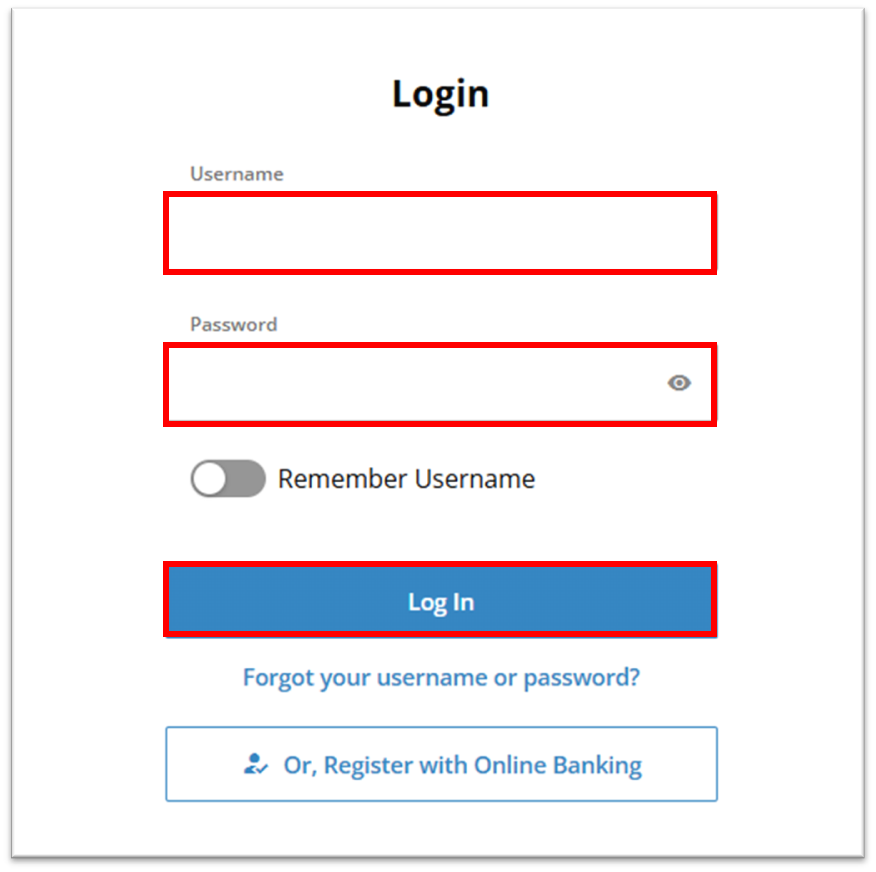
Enter the same Username and Password you previously used for Blue Digital and select Login.
If you are the primary account holder, select Get Started.

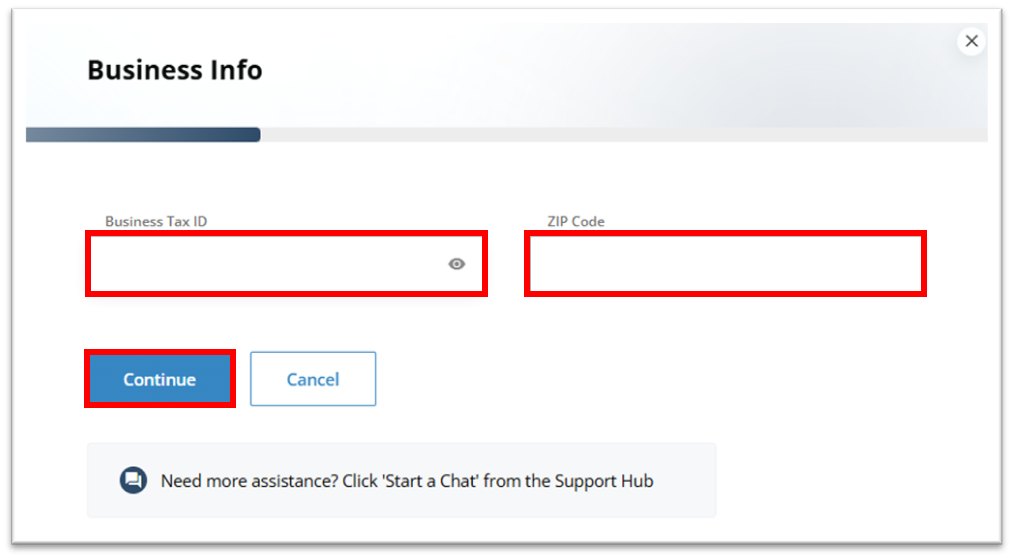
Enter the Business Tax ID, the ZIP Code of the business, and select Continue.
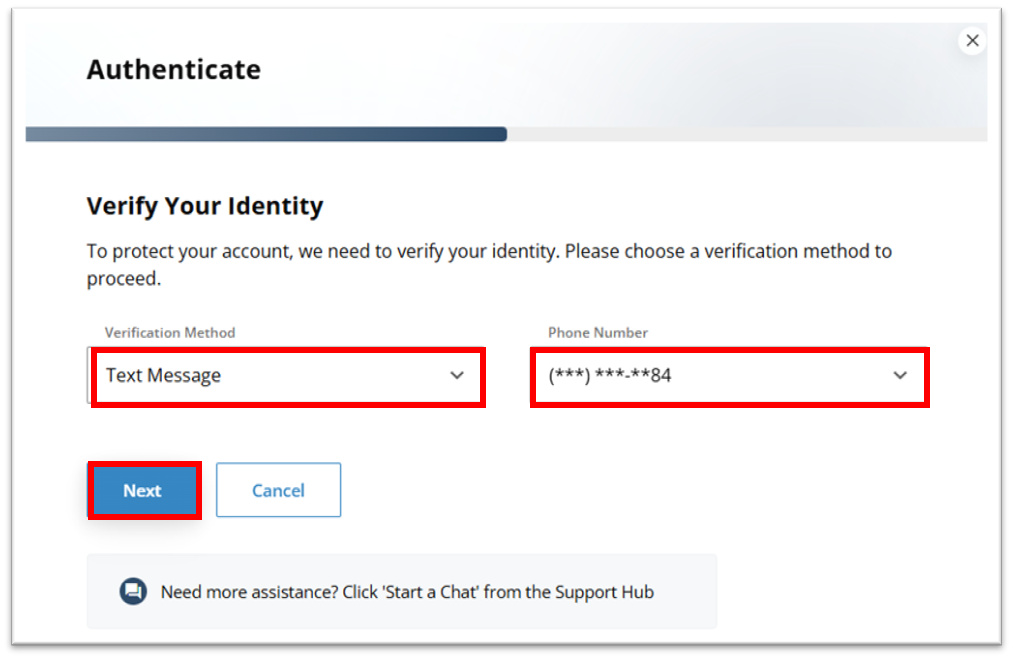
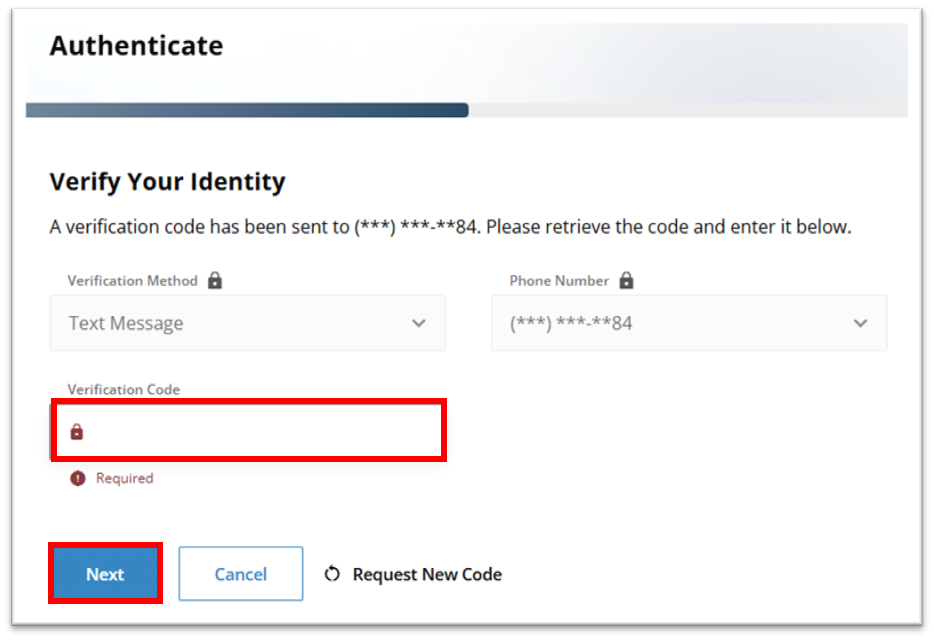
Select a Verification Method and the specific Phone Number or Email address, then click Next.
Once you have received the verification code, enter it on the following screen and select Next.
Enter a new Password, make sure to enter it again to confirm, then select Next.

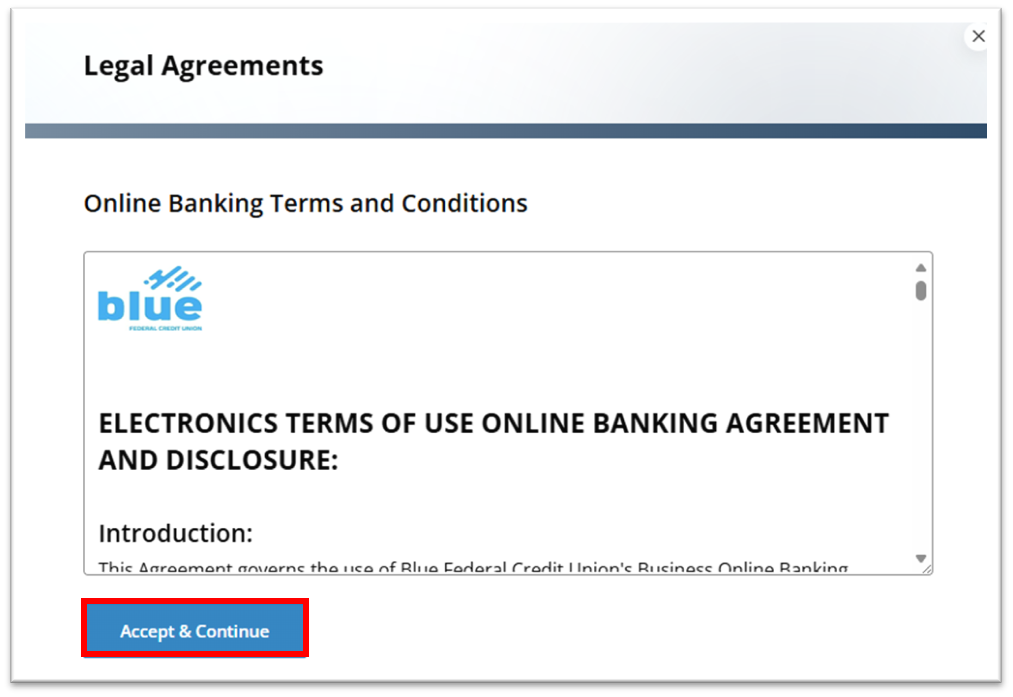
To proceed, you must read and accept the Online Banking Terms and Conditions, then select Accept & Continue.